

Rotas in Schedulo Bus, step by step.
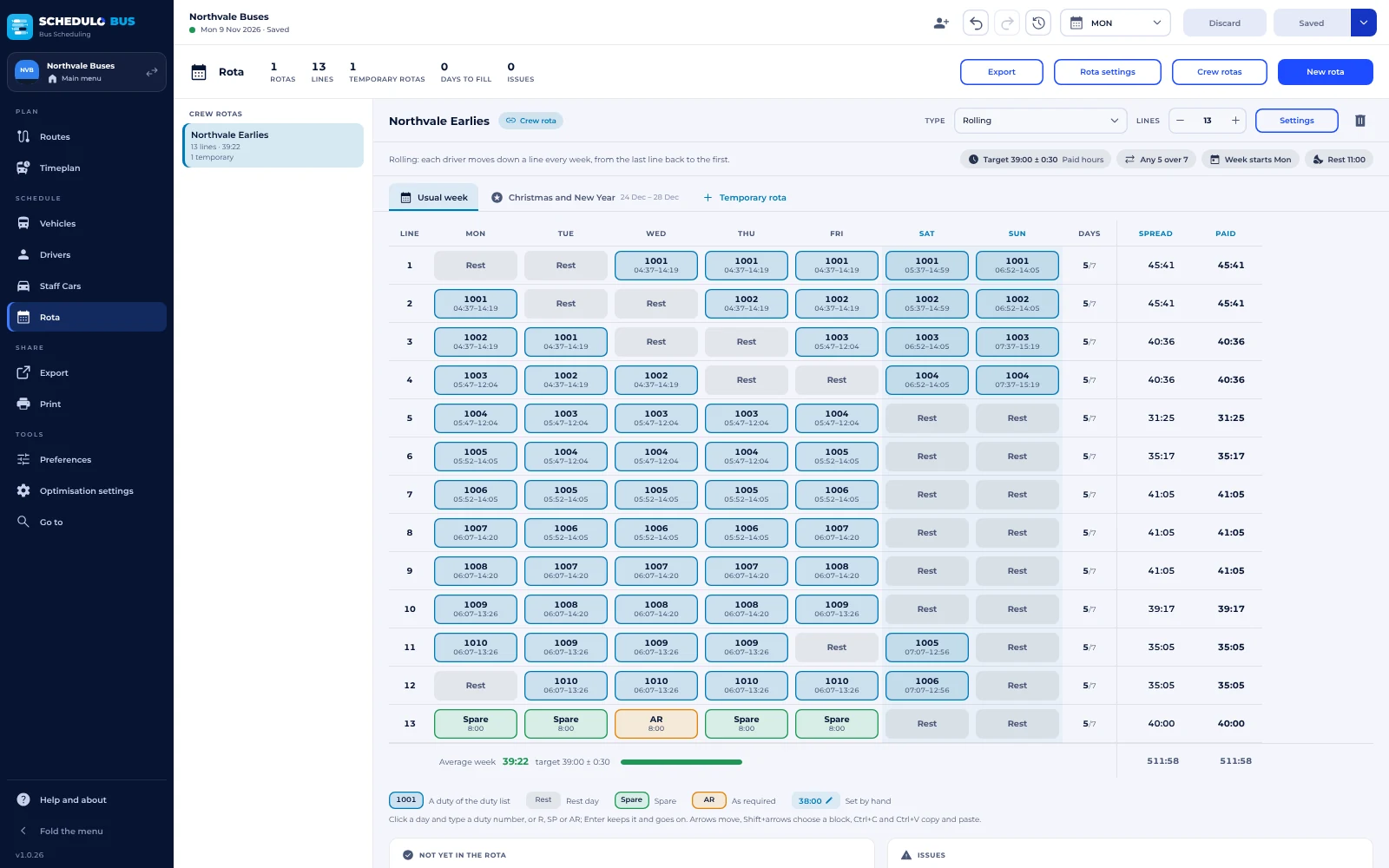
The Rota tab turns your duties into the weeks your drivers actually work: a line a row, a day a column, with hours, rest and gaps checked as you type.
What a rota is
Duties say what one driver does on one day. A rota says which duties a driver works across a whole week, and how the weeks follow on from each other. Each row of a rota is a line: a week of work, such as early duties Monday to Friday with Saturday and Sunday off. In a rolling rota, each driver moves down one line every week, so over time everyone shares the early starts, the late finishes and the weekends.
The Rota tab is in Schedulo Bus 1.0.26 and later. It sits in the menu on the left, under Staff Cars. You need your duties first: build the vehicle blocks and cut them into duties as usual (see Bus and driver scheduling, explained), and save.
Step 1: make a rota
There are two kinds of rota on the tab, and you can use either or both:
- Crew rotas are the rotas in Preferences › Rotas, the ones you give duties on the Drivers tab (for example Oxhill, Sutton or Specials). Each one already has a heading on the Rota tab, with its lines ready to fill. The Crew rotas button opens that page of the Preferences.
- Rotas of the tab's own, for anything else you want to plan, such as a summer relief rota.
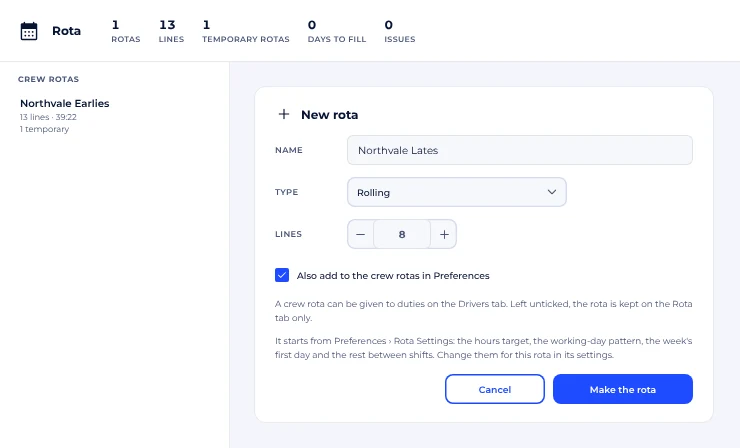
To make one, press New rota at the top right:
- Give it a name, such as Northvale Lates.
- Choose its type (see below) and how many lines it has. You can add or take out lines later.
- Tick Also add to the crew rotas in Preferences if duties should be given this rota on the Drivers tab. Left unticked, the rota is kept on the Rota tab only.
- Press Make the rota.
A rota's type says how drivers move through it:
- Rolling: each driver moves down a line every week, from the last line back to the first.
- Rolling every few weeks: the same, but drivers stay on a line for a number of weeks (2 to 12) before moving on.
- Fixed lines: each driver keeps their own line.
- Rolling in groups: the lines are split into groups, and each group rolls on its own.
Step 2: fill the lines
Every day of a line is one of: a duty number from that day's duty list, Rest, Spare, AR (as required), or a mark of your own (see Step 4). It works like a spreadsheet:
- Click a day and type. Type a duty number (1005), or R for Rest, SP for Spare or AR for As required. Enter keeps it and moves on to the next day.
- Move with the arrow keys, and choose a block of days with Shift and the arrows.
- Copy and paste with Ctrl+C and Ctrl+V, between lines or straight from a spreadsheet such as Excel. If your rota is already in a spreadsheet, copy the whole block and paste it in one go.
Not sure of the number? The picker under the day lists that day's duties with their sign-on and sign-off times and paid hours. Duties already given this crew rota come first, and duties already in a line are greyed out, so you can see at a glance what is still to place. Click one to put it in. The buttons at the top of the picker set Rest, Spare or AR, and the cross clears the day.
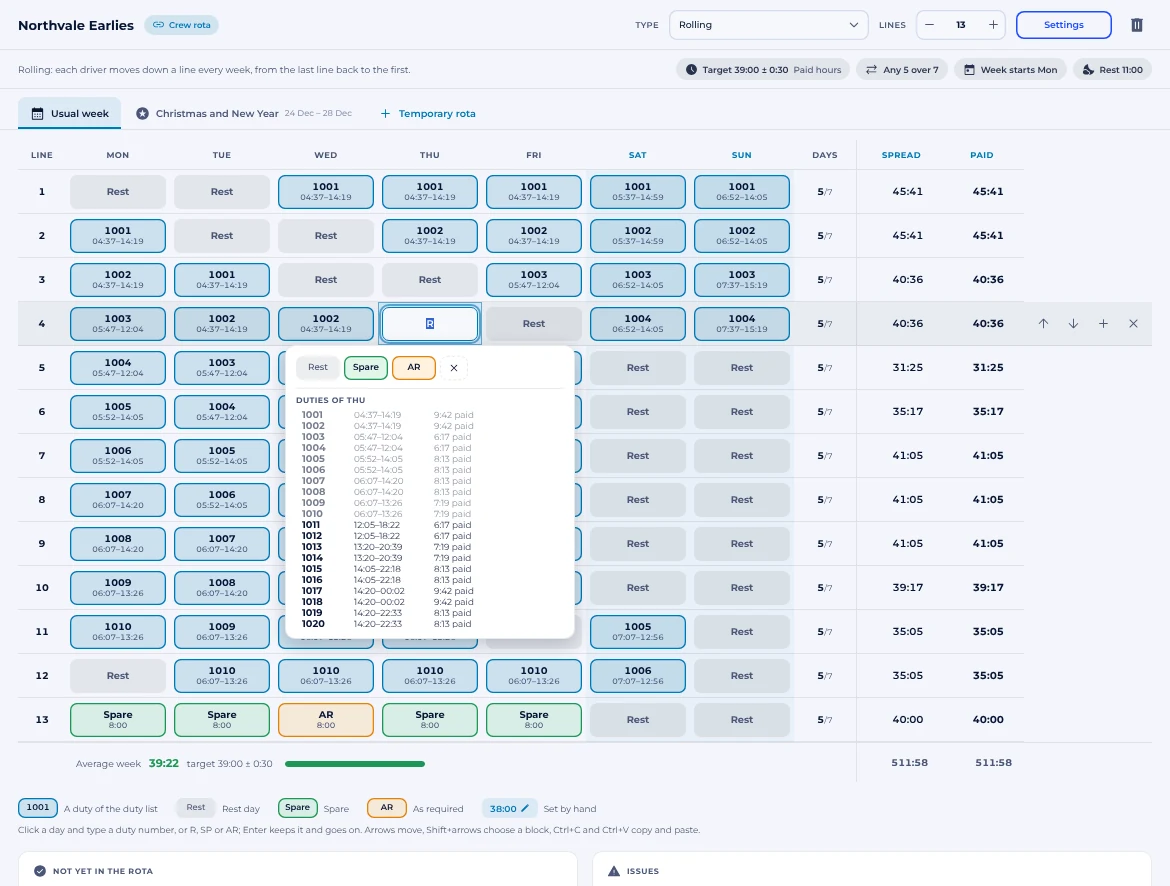
Tip: a Spare or AR day counts the hours set in the rota settings (8:00 to start with). To count different hours for one day, type them in the picker for that day.
Step 3: check the hours, rest and gaps
As you fill the grid, Schedulo Bus adds it up and checks it:
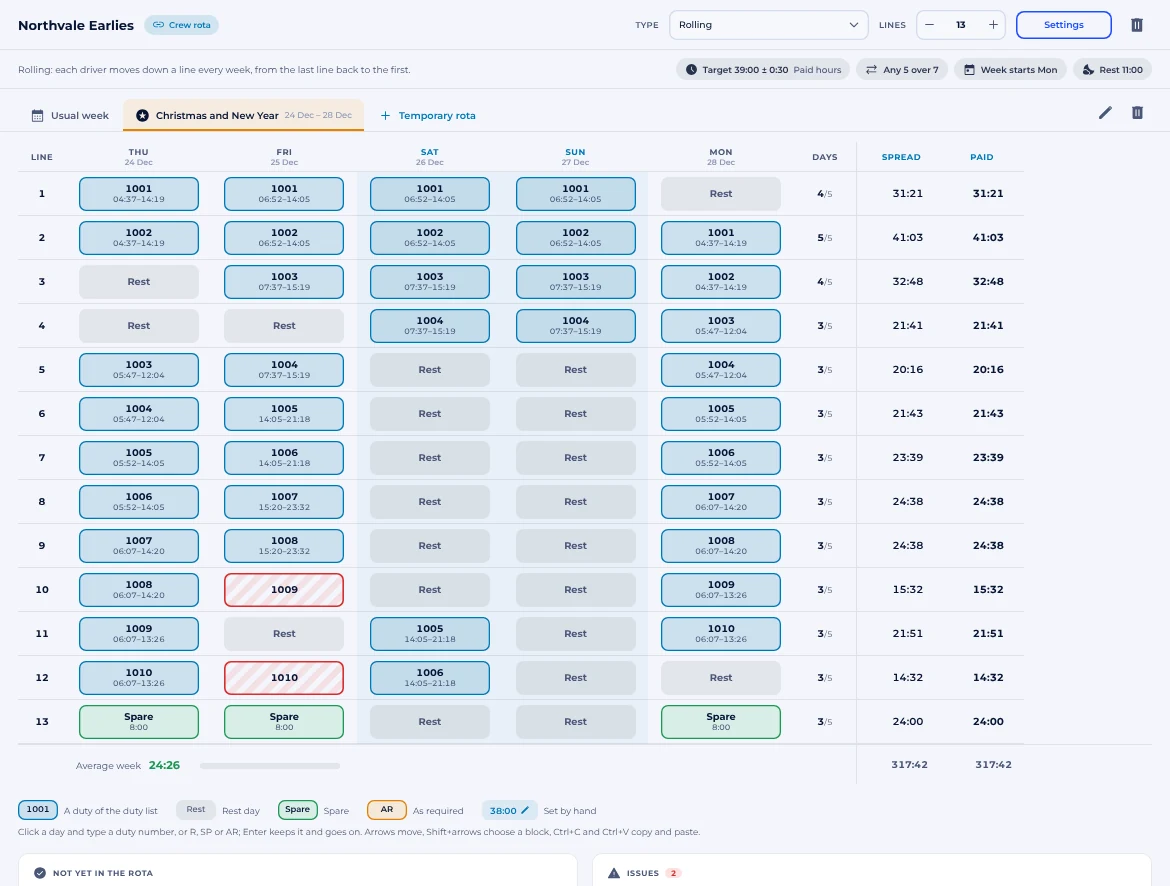
- On the right of each line: the days worked (5/7), the spread (sign-on to sign-off, each day added up) and the paid time for the week.
- Under the grid: the average week across all the lines, against the rota's hours target (39:00 ± 0:30 in the picture). The bar turns red when the average is off target.
- Not yet in the rota: each day's duties that are in no line yet, so nothing gets left out.
- Issues: a duty in two lines on the same day, a duty that isn't in that day's list, a duty of another crew rota, less rest between shifts than allowed (checked into the next line too), a line off the working-day pattern, or a line over the most hours in a week or off its target.
A day with a problem is striped red in the grid, and the issue says which line and day it is.
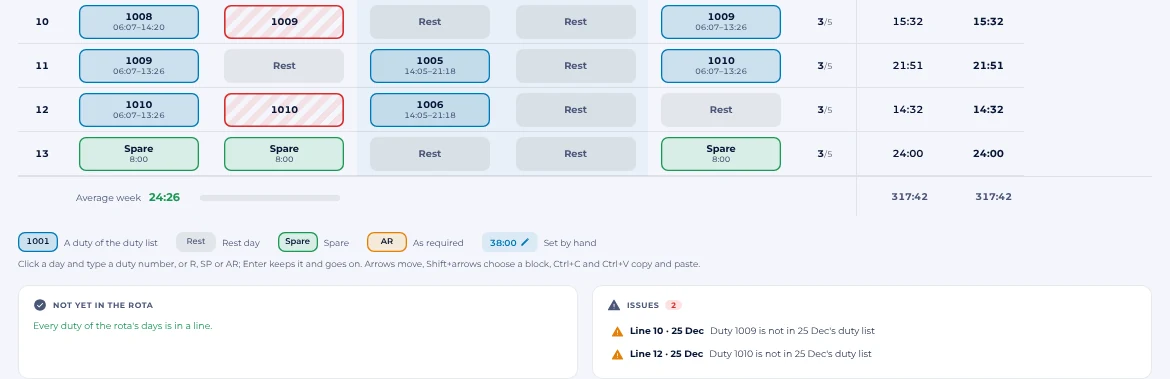
A line of much Spare or AR? Click its spread or paid time to set the week's hours by hand. They are marked with a pencil and count in the average week. They can never be less than what the line's duties alone add up to: the window shows the least they can be, and Back to the days' total undoes it.
Step 4: set your rules
Preferences › Rota Settings (the Rota settings button on the tab) is what every rota starts from:
- The week: the day the week starts, and how long a line is: 7 days for a week, 8 for 4 on 4 off, 14 for a fortnight.
- Hours: whether a line's hours are counted as paid hours, spread, work time or driving time; the hours a Spare and an AR day count; the average hours target and how far off it a line may be.
- Working days: the pattern, such as any 5 days over 7, days on and days off (4 on 4 off), or the same weekdays every week.
- Rules: the least rest between shifts, the most hours in a line's week, and how strict each check is: Allowed, A warning or Not allowed.
- New rotas: how many lines and what type a new rota has, and marks of your own, each with a code, a name, a colour, its hours and whether it is a working day (for example TR for training or HOL for holiday).
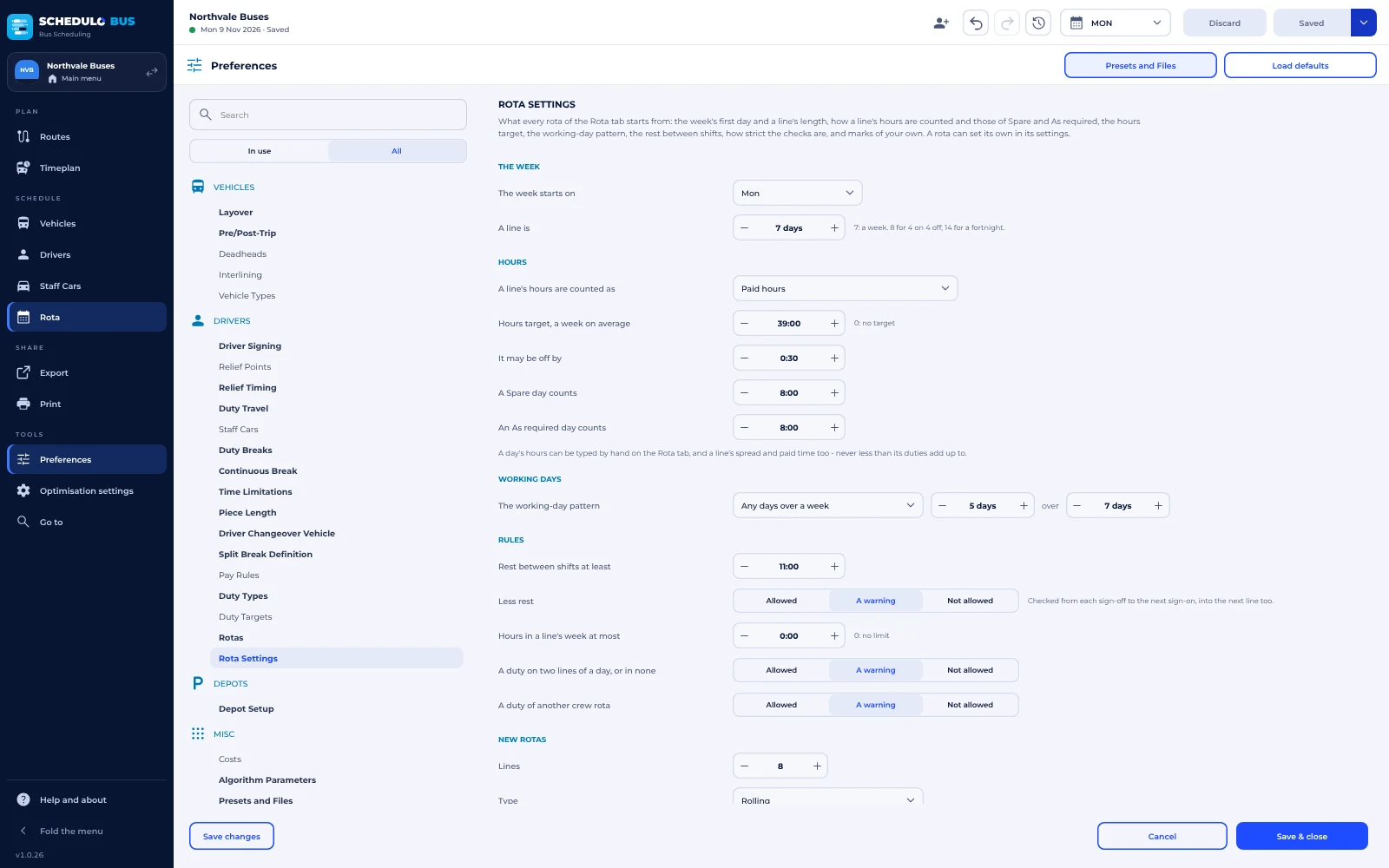
A rota can have its own rules too. Press Settings on the rota's bar to change any of these for that rota alone, and to set the week line 1 runs. The tab then shows which line runs this week, and the Weeks ahead export lists the lines for the next twelve weeks.
Step 5: Christmas and bank holidays
For a few dates that don't follow the usual week, make a temporary rota:
- Press Temporary rota next to the Usual week tab above the grid.
- Give it a name, such as Christmas and New Year, and the dates it runs from and to.
- Leave Start from the usual week ticked to copy each date's weekday from the usual week, then press Make it.
The temporary rota gets its own tab, with a column for each date. Each date's duties are that date's own plan, so a duty that doesn't run on Christmas Day is flagged straight away, and you can swap it for Rest or another duty. On its dates the temporary rota replaces the usual week, and the usual week runs again after it.
Step 6: print and export
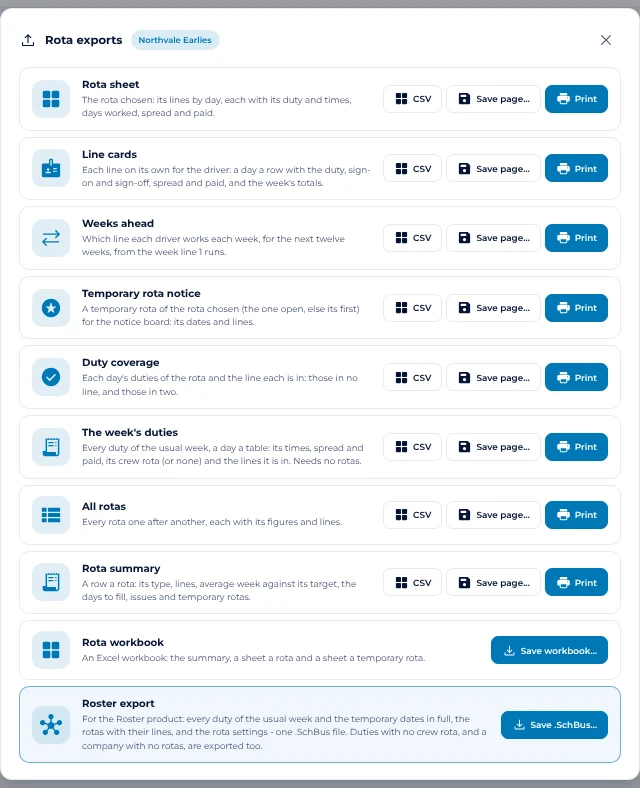
Press Export on the Rota tab. Each of these can be printed, saved as a page or saved as a CSV file:
- Rota sheet: the rota's lines by day, each with its duty and times, days worked, spread and paid.
- Line cards: each line on its own for the driver, a day a row.
- Weeks ahead: which line each driver works each week, for the next twelve weeks.
- Temporary rota notice: the dates and lines of a temporary rota, for the notice board.
- Duty coverage: each day's duties and the line each is in, with those in no line or in two.
- The week's duties: every duty of the usual week with its times and the lines it is in. It needs no rotas.
- All rotas and the Rota summary, a row a rota with its figures.
The Rota workbook saves all of it as one Excel file: the summary, then a sheet for each rota and each temporary rota.
The Roster export
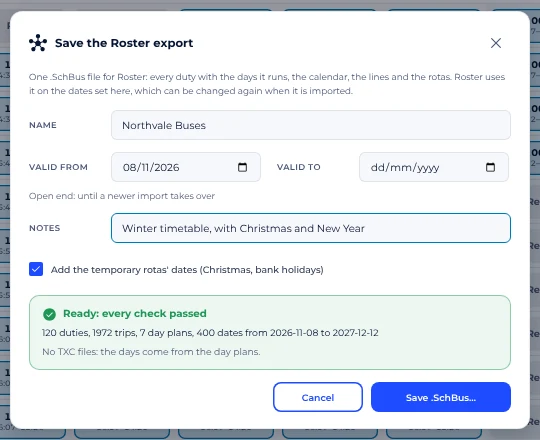
The last export, Roster export (also under Export › Data), saves one .SchBus file for Schedulo Roster, the crew rostering app that is coming to the Schedulo family. It holds every duty in full (times, pieces, blocks and trips), a calendar of up to 400 days with each date's plan and holidays, the rotas with their lines and settings, and a checksum. It works even if you have no rotas.
Before it saves, give the file a name, the dates it is valid from and to (leave Valid to empty for an open end), any notes such as a service change, and whether to add the temporary rotas' dates. Schedulo Bus then checks the file and says what it holds, before you save.
Common questions
- Do I have to use rotas? No. Duties, running boards and duty cards all work without them. Rotas are there when you want to plan your drivers' weeks too.
- I changed the duties. Does the rota update? The rota keeps the duty numbers you typed. If a duty is renumbered or no longer runs on a day, the day is striped red and listed under Issues, and any new duty shows under Not yet in the rota.
- Can I see drivers' names? Not yet: a rota plans the lines, and the Weeks ahead export shows which line runs which week. Putting named drivers on the lines is a job for Schedulo Roster.
- Can I undo a change? Yes. Rota changes are part of the plan like any other edit: Undo takes them back, and nothing is kept until you press Save.
Still stuck? E-mail Support@schedulo.uk and we'll help.
Ready to plan smarter?
Ask for a demonstration, a trial or a licence key, or tell us what your operation needs. Every message goes to the right person at Newey Transport Services, and we reply by e-mail.
- Demonstrations and general questions
- ContactUs@schedulo.uk
- Licence keys and renewals
- Licence@schedulo.uk
- Help with Schedulo TXC, Bus, Coach or licensing
- Support@schedulo.uk
- News and updates
- Follow Schedulo on LinkedIn