

Plan your staff cars in Schedulo Bus.
Staff cars take drivers between the depot and the relief points, several in one car. Schedulo Bus plans the cars alongside the duties, weighs every minute a driver waits against the cost of another car, and prints a running board for each car.
What the staff car feature does
When a driver takes over a bus away from the depot, they have to get there, and the driver they relieve has to get back. Walking or public transport works for some reliefs; for the rest, operators run staff cars. Schedulo Bus plans those cars for you (what’s new in 1.0.26):
- It shares cars. Drivers needed at about the same time go in one car, and a car that brings a driver to a relief takes back the driver who was relieved there.
- It counts the cost. Waiting is paid time, so Optimise weighs every minute a driver waits against the cost of another car for the day.
- It shows you every run. The Staff Cars tab lays the cars out like your buses, and you can change any run by hand.
- It prints them. Each car gets a running board, and the duty cards say which car each driver takes.
You need Schedulo Bus 1.0.25 or later, with your timetables already open (see bus and driver scheduling, explained if you're new to blocks and duties).
Step 1: say who travels by staff car
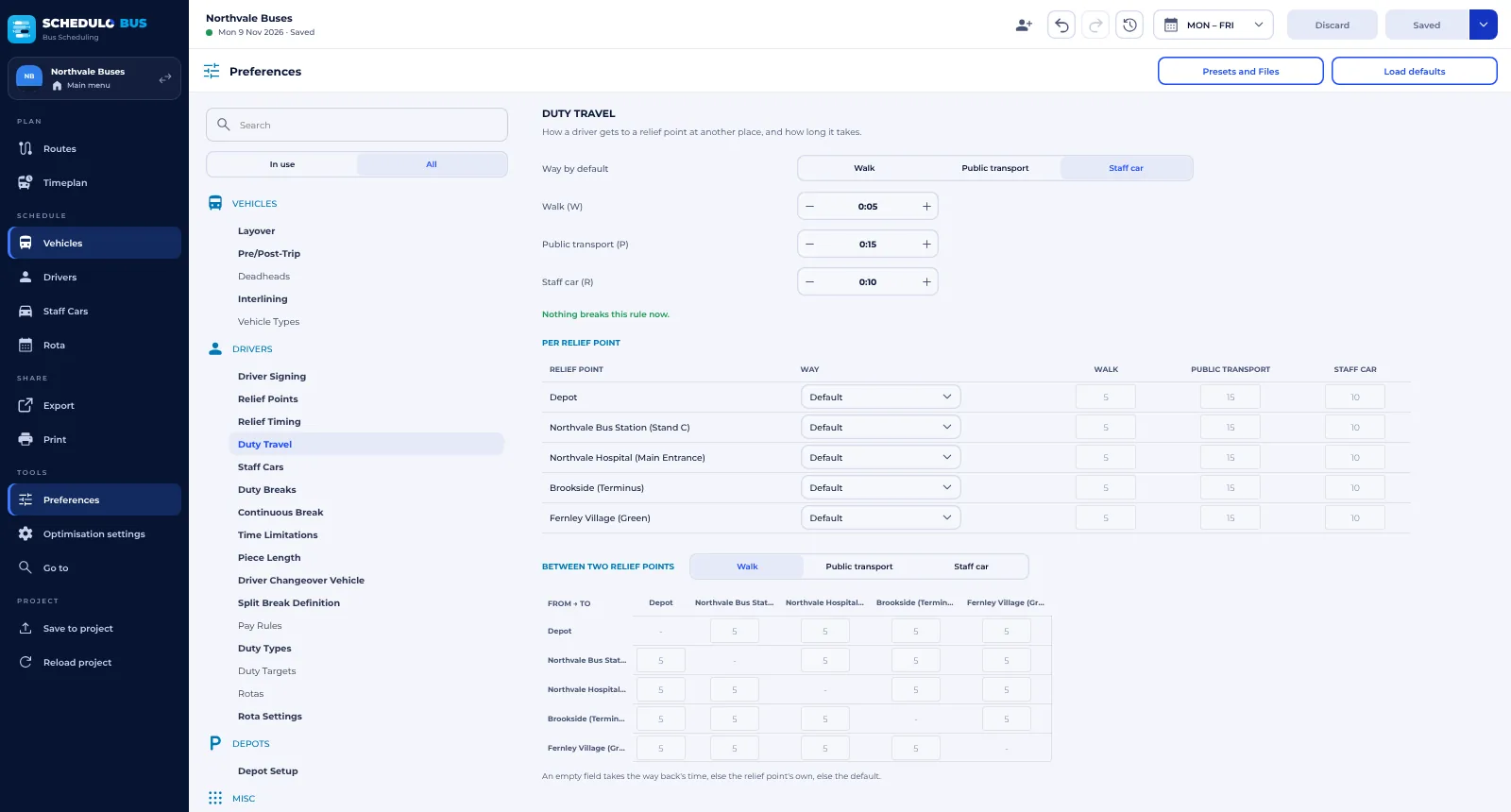
A driver goes by staff car wherever Preferences › Duty Travel says so.
- Open Preferences in the menu on the left, then Duty Travel under Drivers.
- Choose the way. Set Way by default to Staff car to use cars everywhere, or leave it on Walk and pick Staff car only for the relief points that need one, in the Per relief point table.
- Set the times. Staff car (R) is how long a car takes by default. Give a relief point its own time in the table, or a time between two relief points in the grid underneath.
Tip: drivers only need a car where they can't sign on. In Relief Points, untick Sign-on/off at a terminus and drivers sign on at the depot and travel out to the bus instead.
Step 2: set up your car pools
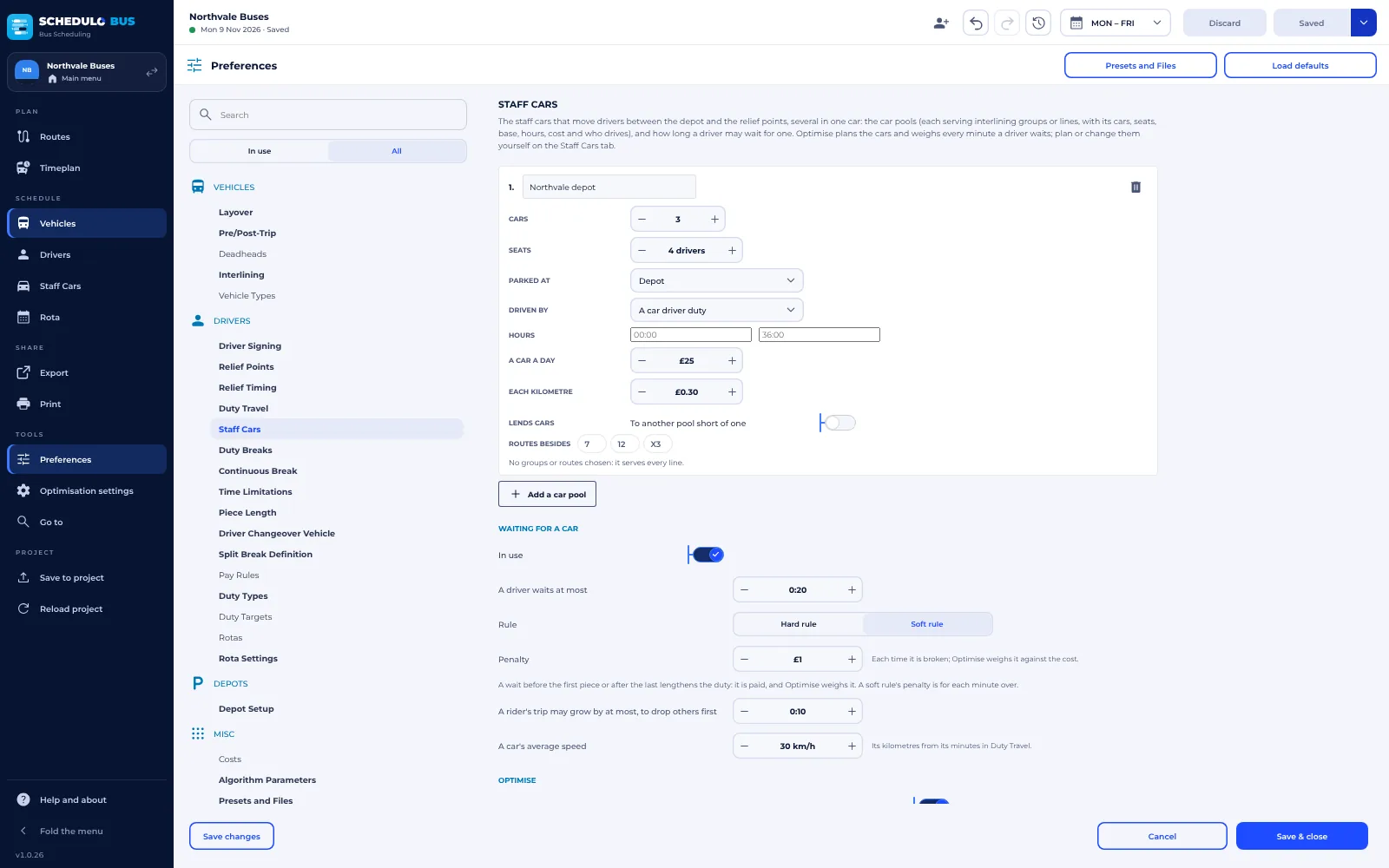
Open Preferences › Staff Cars and press Add a car pool. A pool is a group of cars that serve the same lines. For each pool, set:
- Cars and seats: how many cars the pool has, and how many drivers each one carries.
- Parked at: where the cars start and finish the day, usually the depot.
- Driven by: A car driver duty (a driver whose job is to drive the car), One of the riders (a driver drives the car on their way to their bus) or The controller.
- Hours: when the pool runs. Leave them empty for all day.
- A car a day and each kilometre: what a car costs, so Optimise can weigh cars against waiting.
- Lines: the interlining groups and routes the pool serves. Choose none and it serves every line. If you use interlining groups, A pool for each interlining group makes all the pools in one go.
Underneath the pools, Waiting for a car sets how long a driver may wait. A hard rule is never broken; a soft rule adds its penalty for each minute over. You can also set how much longer a driver's trip may get so the car can drop others first, and the cars' average speed, which turns minutes into kilometres.
Press Save & close.
Step 3: let Optimise plan the cars
Press Optimise. With Optimise plans the staff cars switched on (the default, at the bottom of the Staff Cars preferences), it makes the duties and the car runs together, and makes a car driver duty for each pool that needs one. When it's done, check the result and press Accept, then Save. As always, nothing is kept until you save.
Step 4: check the Staff Cars tab
Open Staff Cars in the menu, under Schedule. Each car is a row across the day, numbered Car 1, 2, 3 and on. Along the top are the cars used, runs, drivers carried, car kilometres, waiting time and the cost a day.
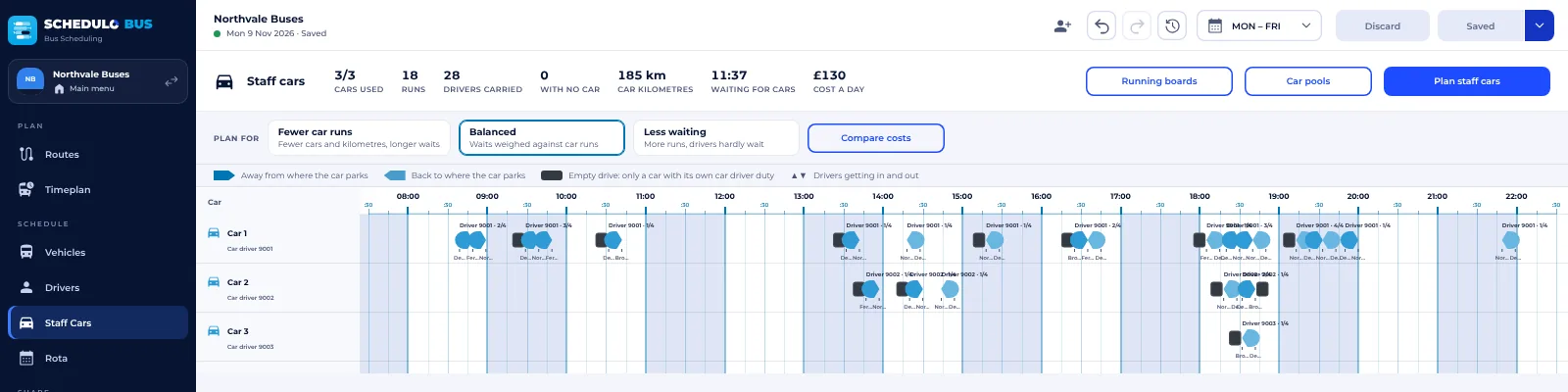
How to read it:
- Each leg of a run is a chip that points the way it goes: to the right, away from where the car parks, and to the left (a shade softer), back towards it.
- The stop names sit under the chips, with who gets in (▲) and out (▼). Who drives and how many ride are shown over the run.
- Dark chips are empty drives, with their minutes. Only a car with its own car driver duty makes them.
- A car its riders drive is parked wherever they leave it, so a run that starts anywhere else is marked red.
- Use + and − in the corner to zoom.
Fewer car runs, Balanced or Less waiting
Along the top, choose how the planner leans. Fewer car runs has drivers share cars and wait a little longer, for fewer cars and kilometres. Less waiting runs more cars so drivers hardly wait. Balanced sits in between. Press Compare costs to plan the day all three ways and see each one's runs, cars, waiting, car cost and total cost for the day, and how that compares with now. Fewer runs doesn't always cost less overall, because waiting is paid. Click a way to plan the cars that way; Schedulo Bus remembers it.
Step 5: change a run by hand
Click any run to open it on the right. You can change its pool and car, when it leaves, each stop's time (or Auto, to leave as soon as the car is there), the drivers riding, the car driver and notes for the car driver.
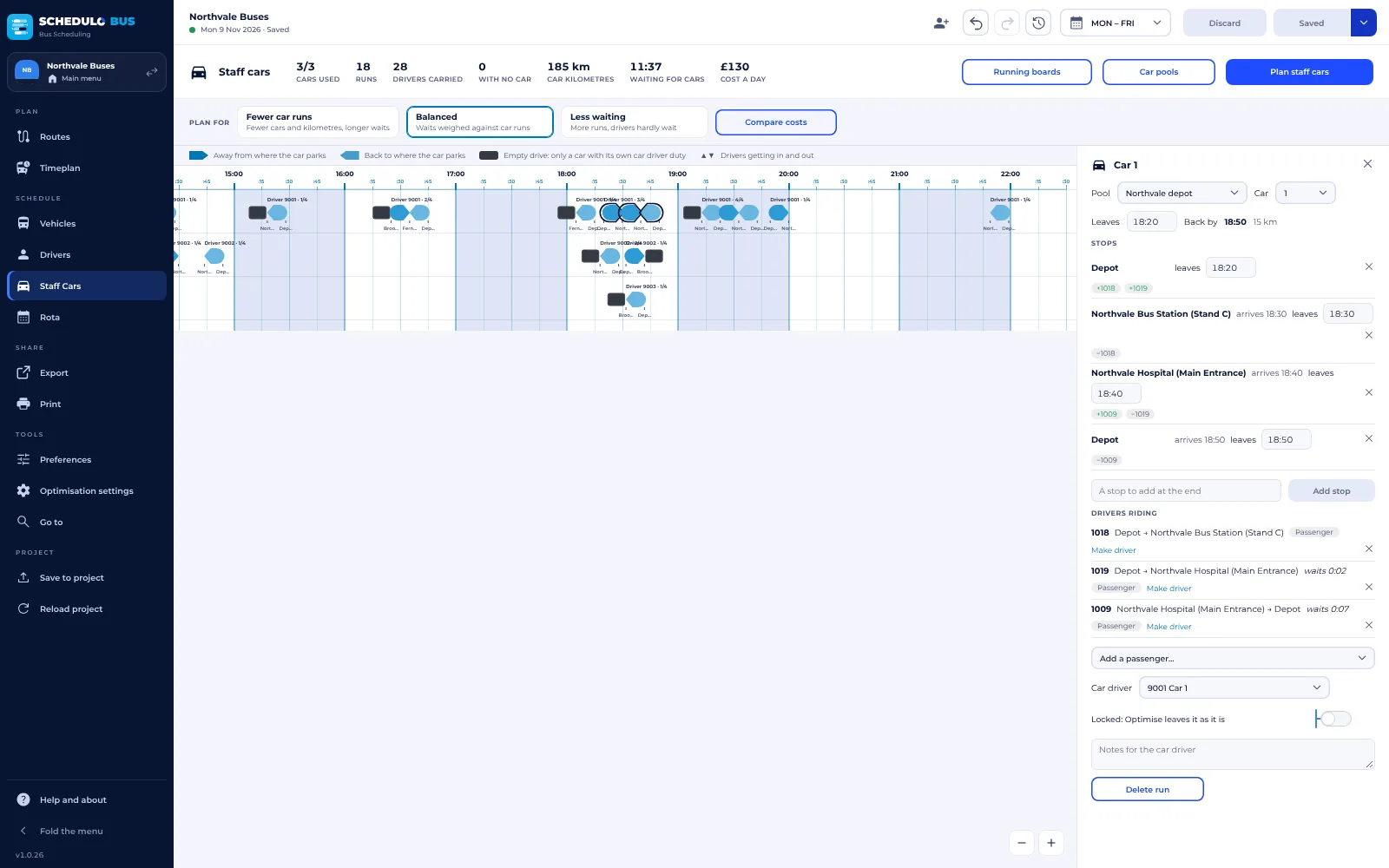
- Add a passenger… puts any duty's car travel on this run, even one that's on another car.
- Each rider shows Drives or Passenger. Make driver has that rider drive the car while they're aboard, then go on to their bus; the rider who got in first drives on after they get out.
- Car driver picks a car driver duty instead, or A new car driver duty makes one that only drives staff cars, for a car with many runs.
- Locked keeps the run exactly as it is when Optimise or Plan staff cars plans the cars again. Every other run is made again.
Car travel that has no car yet waits in a tray above the cars. Ride with… puts the driver on a run that suits, and New run gives them a run of their own.
Step 6: see the cars on the duties
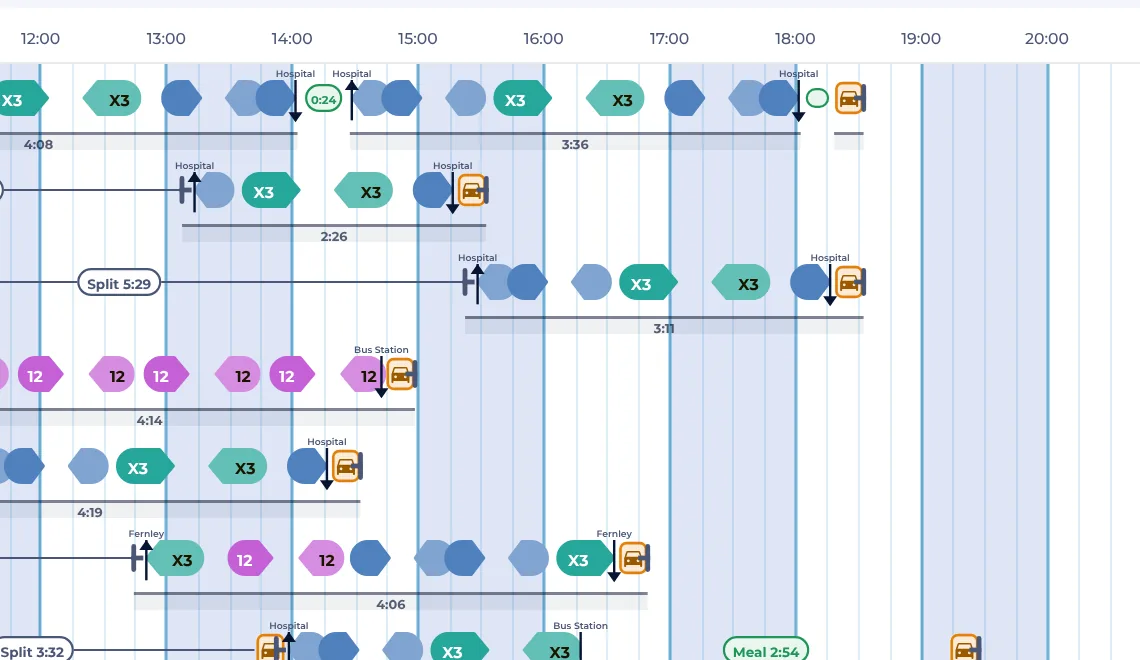
On the Drivers tab, a driver's travel by car is the amber box with a car in it, at the start or end of a piece. Its card says which car, when it leaves and how long the driver waits for it.
Step 7: fix any issues
The issues list tells you where a car is too full, in two places at once, too late for a bus, running outside its pool's hours or has nobody to drive it, where a driver waits too long, and where a pool needs more cars at once than it has. Change the run, add a car to the pool, or let Optimise try again.
Step 8: print the running boards and the car sheet
Press Running boards on the Staff Cars tab (or Print running boards in Print). Staff car running boards sit beside the vehicle and duty boards and use the same templates, styles and page layouts, so they look like the rest of your paperwork. Each car's board shows who drives each run, every run's stops and times, who gets in (and drives) and out, the empty drives and your notes. Save them as PDF files or print them.
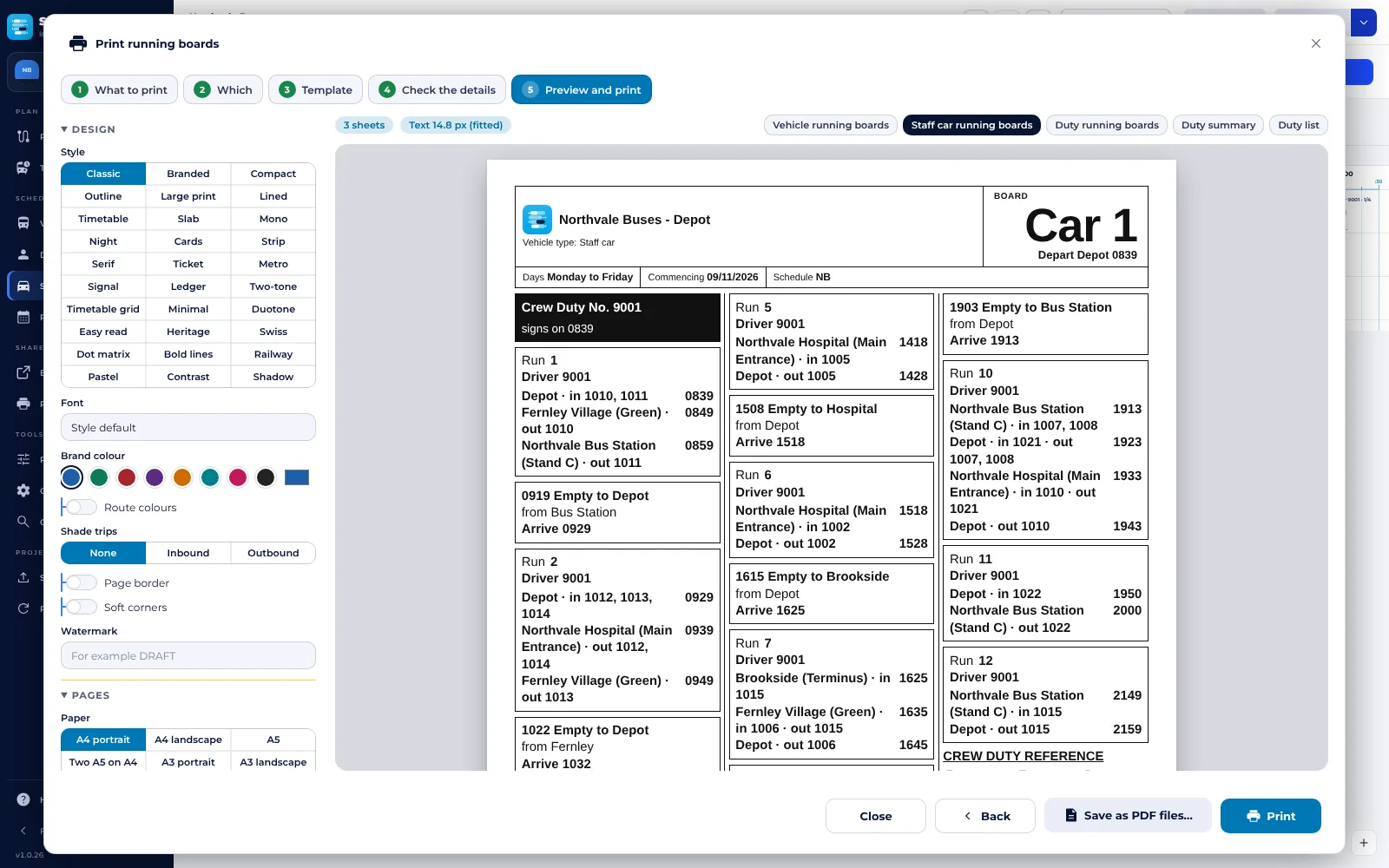
The Staff car sheet (in Print and Export, under Schedules, and in More reports) lists each car's runs stop by stop with who gets in and out, to print or save as a CSV. The duty schedule and the duty running boards also say which car each driver takes, whether they drive it or ride as a passenger (and who drives), when it leaves and with whom.
Common questions
- No staff car runs appear. Check that Duty Travel says Staff car for the relief points involved, and that there's at least one car pool. If drivers can sign on at a relief point, they won't need a car there.
- “Set the staff car pools first”. Add a pool in Preferences › Staff Cars.
- The pool needs more cars than it has. Add cars to the pool, switch on Lends cars on another pool, try Fewer car runs, or allow a longer wait.
- I changed a run and Optimise undid it. Switch on Locked in the run first.
Still stuck? E-mail Support@schedulo.uk and we'll help.
More guides.
Ready to plan smarter?
Ask for a demonstration, a trial or a licence key, or tell us what your operation needs. Every message goes to the right person at Newey Transport Services, and we reply by e-mail.
- Demonstrations and general questions
- ContactUs@schedulo.uk
- Licence keys and renewals
- Licence@schedulo.uk
- Help with Schedulo TXC, Bus, Coach or licensing
- Support@schedulo.uk
- News and updates
- Follow Schedulo on LinkedIn